

Google OAuth
Plane already ships with out-of-the-box support for Google OAuth. This is the easiest option to configure for Google Workspace users.
Configure Plane as an app on Google API Console
First, you will need to identify Plane as an approved OAuth app to Google.
Go to the Google API console and create a new project.
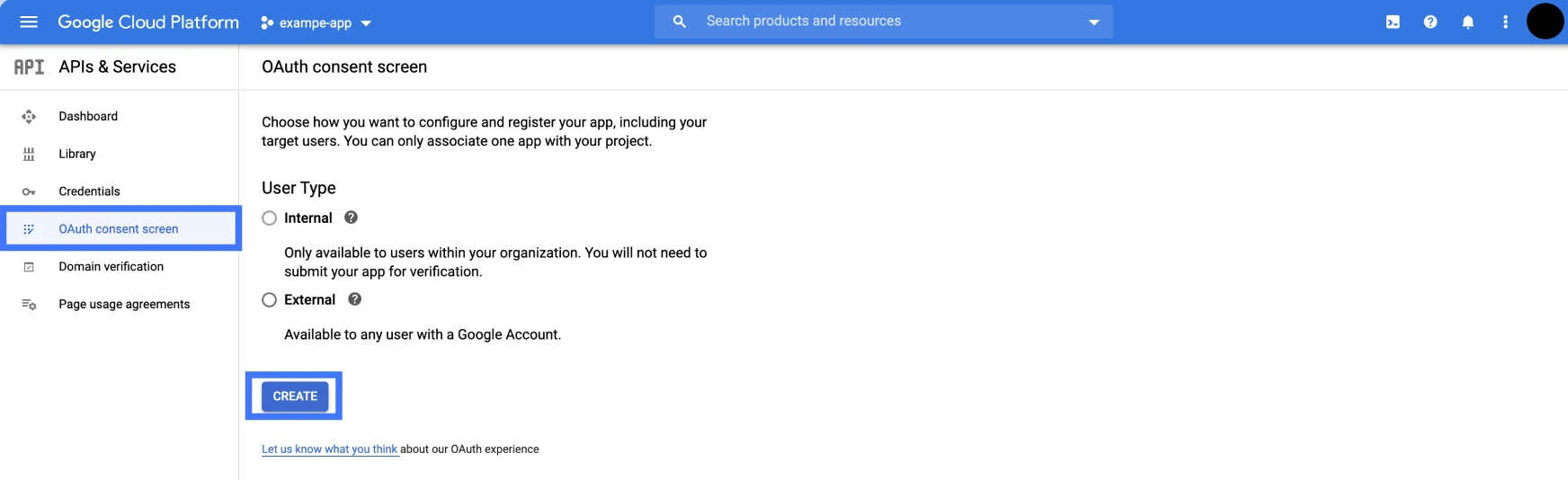
Navigate to the OAuth consent screen under APIs & Services. Choose how you want to configure and register the Plane app, including your target users, and click Create.
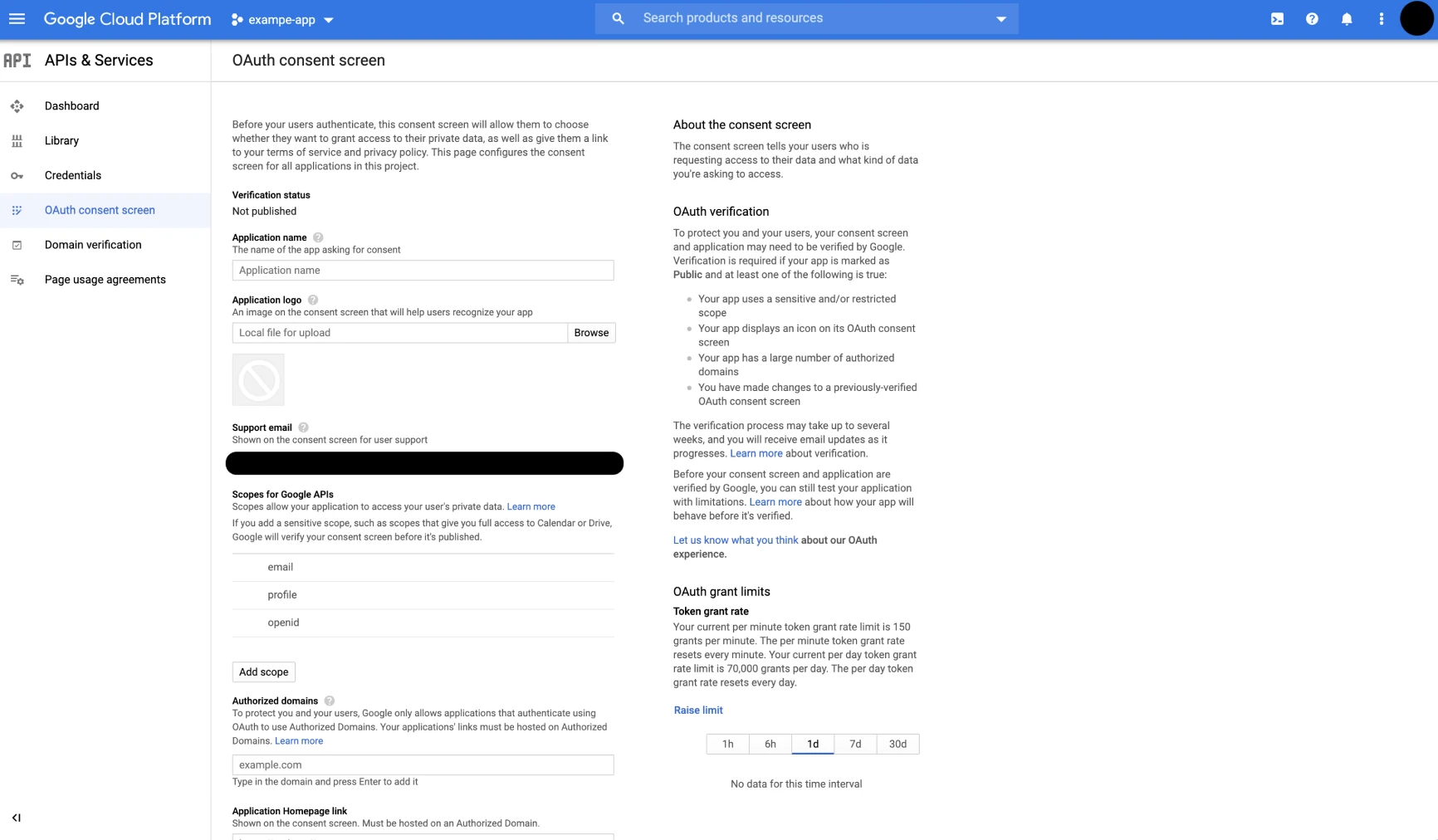
Configure the OAuth consent screen with information about the app.
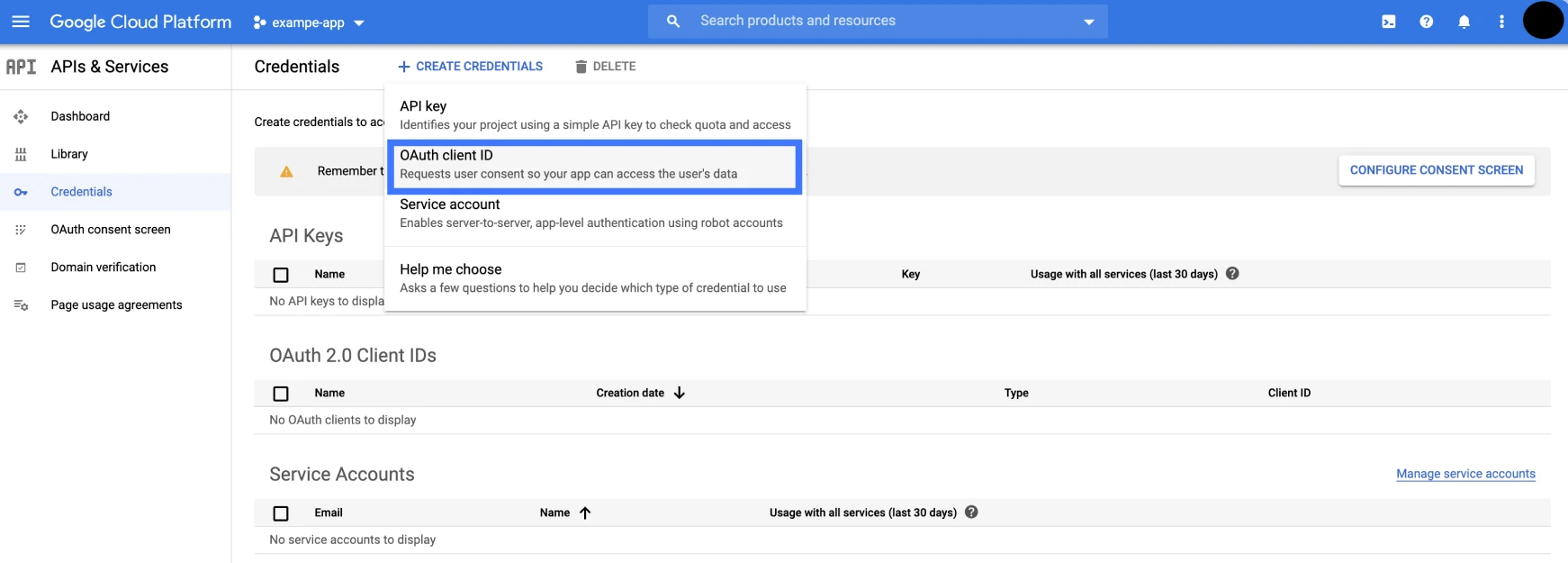
Navigate to the Credentials screen, click Create Credentials, and select OAuth client ID from the options given.
Select Web application under the Application type dropdown list. Update the following fields.
- Authorized JavaScript origins
The HTTP origins that host your web application, e.g.,https://app.plane.so - Authorized redirect URIs
Append the path that users should be redirected to after they have authenticated with Google.https://<plane.example.com>/auth/google/callbackandhttps://<plane.example.com>/auth/mobile/google/callback/where<plane.example.com>is your self-hosted instance's domain. - Click Create.
- Get the Client ID and Client secret under OAuth 2.0 Client IDs on the Credentials screen.
- Authorized JavaScript origins
Configure Plane
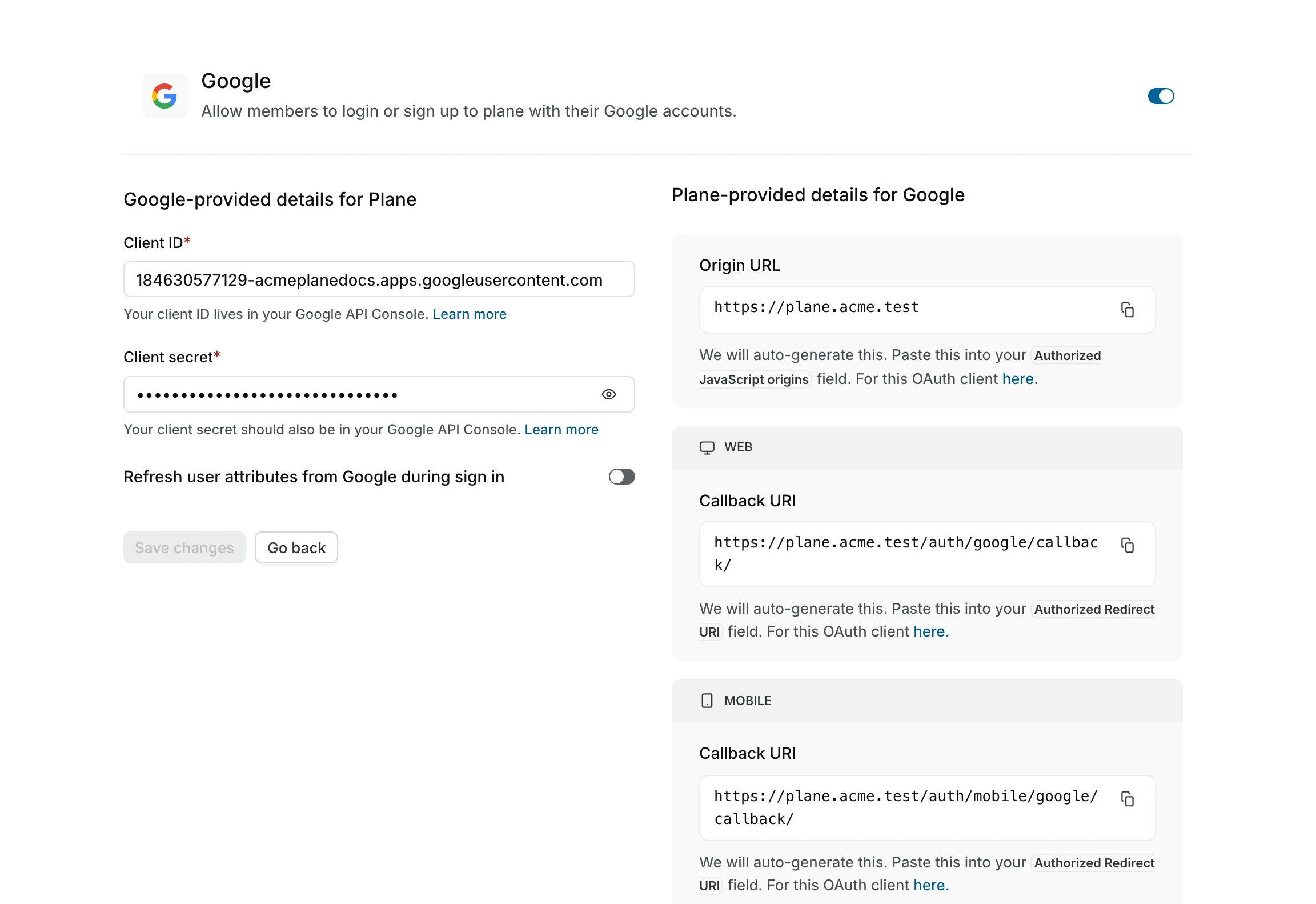
- Go to
Googleon the Authentication screen of/god mode. - Add the client ID + the client secret from Google API Console.
- Click
Save.
Your Plane instance should now work with Sign in with Google.
INFO
We don't restrict domains in with Google OAuth yet. It's on our roadmap.